Want to boost your efficiency as a virtual assistant? Start with the right communication tools. Here’s a quick rundown of the best ones to handle messaging, meetings, task management, and productivity:
- Slack: Ideal for team messaging and organizing client conversations. Key features include searchable channels, app integrations, and built-in calls.
- Zoom: Perfect for high-quality virtual meetings with screen sharing, recording, and breakout rooms.
- Microsoft Teams: Best for Microsoft 365 users, offering chat, file sharing, and video calls in one platform.
- Google Meet: A simple, secure video call tool that integrates seamlessly with Google Workspace.
- Trello: A visual task management tool using boards, lists, and cards to track project progress.
- Google Workspace: A complete productivity suite with Gmail, Google Drive, Calendar, and Docs for seamless collaboration.
Quick Comparison
| Tool | Starting Price | Best For | Key Features |
|---|---|---|---|
| Slack | $7.25/user/month | Team chat, file sharing | Channels, app integrations |
| Zoom | $14.99/user/month | Client meetings, webinars | HD video, recording |
| Microsoft Teams | $5/user/month | Microsoft 365 users | Video calls, file sharing |
| Google Meet | $6/user/month | Google Workspace users | Video calls, screen sharing |
| Trello | $5/user/month | Task tracking | Boards, automation |
| Google Workspace | $6/user/month | All-in-one solution | Email, storage, Meet |
Pro Tip: Start with free plans for Slack and Google Meet to save costs while exploring their features. Upgrade as your needs grow.
1. Slack for Team Messaging
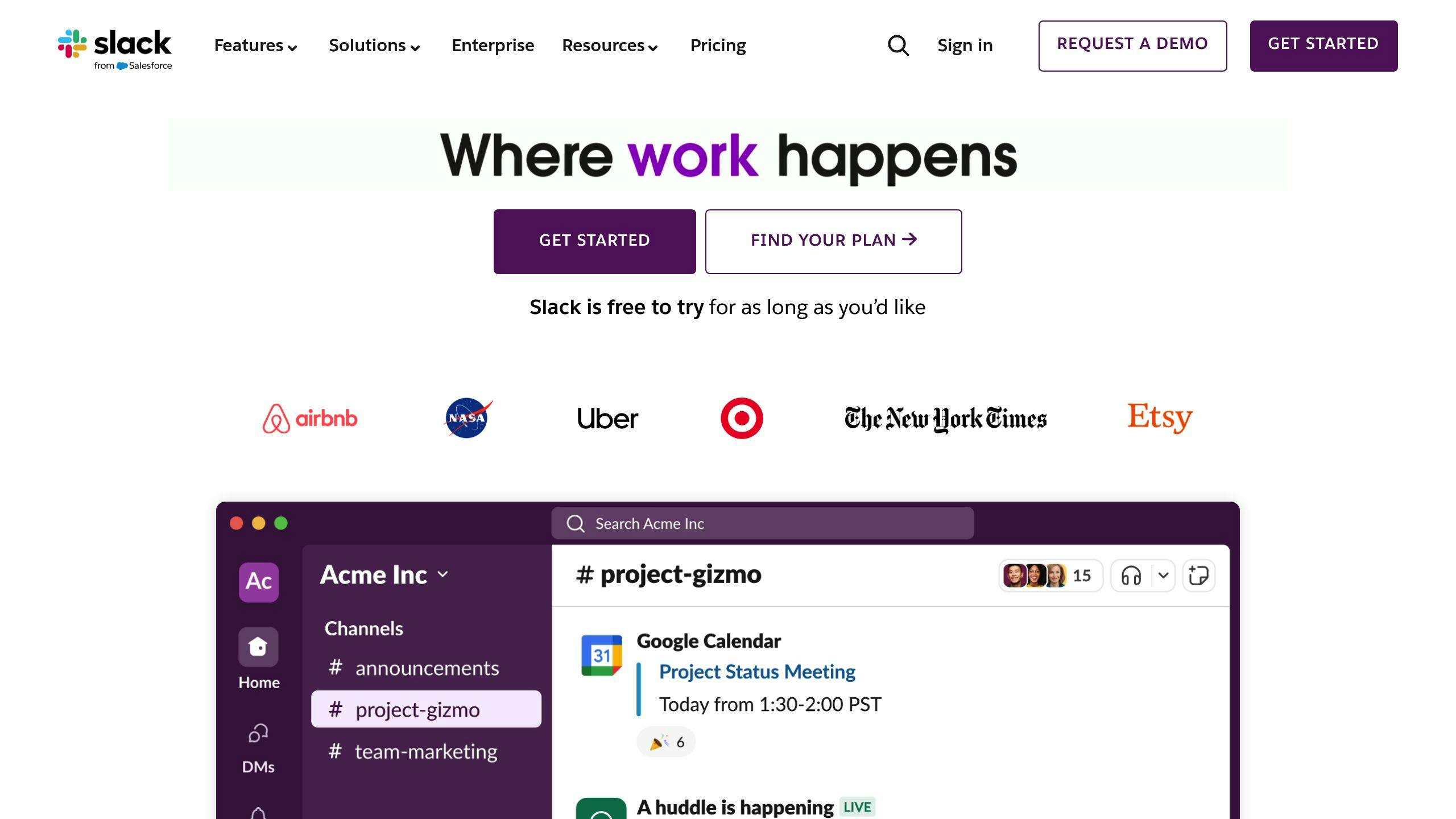
Slack has become the go-to communication hub for virtual assistants managing client work and team collaboration. Here’s why it’s a game-changer:
Think of Slack as your digital office – but better organized than any physical space could ever be. You can set up different “rooms” (channels) for each client or project. Need a #client-updates channel for daily reports? Done. Want a #team-resources space for sharing tools? Easy. Got time-sensitive stuff? Create an #urgent-requests channel.
Key Features That Make Life Easier:
- Channels keep client work neatly separated
- Quick private chats through direct messages
- Drop files right into conversations
- Find old messages in seconds with search
- Connect your favorite work apps
But here’s where Slack really shines: it works with over 2,200 other apps. That means you can:
- Hook up your Asana or Trello boards
- Set up Zapier to handle boring tasks
- Pop calendar invites straight from Google
- Work on docs without leaving the chat
Picture this: You’re chatting with a client, need to schedule a meeting, and want to share last week’s report. Instead of jumping between apps, you do it all in one place. That’s the magic of Slack.
Plus, you get voice and video calls built right in. Need to check past conversations? Everything’s searchable – no more digging through endless email threads.
Think of Slack as your command center. But sometimes you need face-to-face time with clients. That’s where Zoom comes in – but more on that next.
2. Zoom for Virtual Meetings

When it comes to face-to-face online meetings, Zoom stands out as the go-to platform for remote assistants. It brings you and your clients together in a way that feels natural, no matter where you’re located.
Why VAs Love Zoom
The platform shines with crystal-clear video calls and features that make remote work feel smooth and natural. Need to show clients your work? Just hit share screen. Want to keep track of important conversations? Hit record. These tools come in handy when you’re walking clients through project updates or running training sessions.
Here’s what makes Zoom work so well for VAs:
- High-quality video calls that don’t eat up your bandwidth
- One-click screen sharing for live demonstrations
- Recording options to capture every detail
- Easy-to-use interface that clients already know and trust
Make Every Meeting Count
Before jumping on a call, do a quick tech check – it’ll save you headaches later. Test your mic, tidy up your background, and close those 27 browser tabs you’ve got open (we’ve all been there). After the meeting, grab a transcript of the recording. Trust me, you’ll thank yourself later when you need to double-check what your client said about that project deadline.
What It’ll Cost You
Starting out? The free plan works just fine. Ready to level up? Paid plans start at $14.99 monthly and throw in perks like unlimited meeting time. Plus, Zoom plays nice with Google Calendar, so you can automate those meeting invites.
The platform takes security seriously with end-to-end encryption, and features like closed captions make sure everyone can join in effectively.
While Zoom’s your best bet for video calls, keep in mind that Microsoft Teams might be worth a look if you need more all-in-one collaboration tools.
3. Microsoft Teams for Collaboration
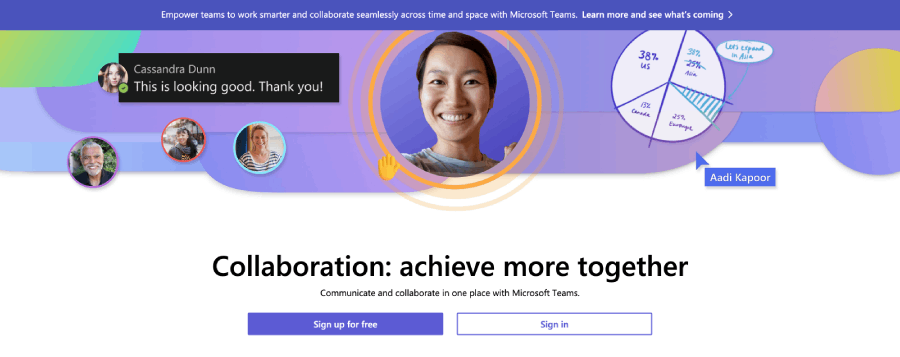
If you work with Microsoft-based clients as a virtual assistant, Teams is your go-to platform. It’s like having a digital office where everything happens in one place.
A Complete Digital Workspace
Teams brings together chat, file sharing, and meetings in one spot – perfect for handling multiple Microsoft 365 clients. Your work gets saved to SharePoint automatically, and you’ll love the AI features that make your job easier. Need to understand clients from different countries? Teams can translate messages on the fly and even suggest quick responses.
What Makes Teams Stand Out
The platform shines because it works so well with other Microsoft tools. You can set up separate channels for each client and work on Office documents together in real-time. Plus, Teams plays nice with tools like Trello and Asana. For those worried about data security, Teams has got you covered – it meets HIPAA, GDPR, and PCI-DSS standards, which means your clients’ sensitive info stays safe.
What You’ll Pay
Basic plans start at $5 per month, and you can upgrade for extras like desktop apps and beefed-up security. If your clients use Microsoft 365, Teams is a smart choice – it works like a charm with all their tools.
Here’s a quick tip: While Teams is great for Microsoft users, Google Meet might be a better fit if you just need simple video calls and basic teamwork tools.
sbb-itb-b0bc93c
4. Google Meet for Video Calls
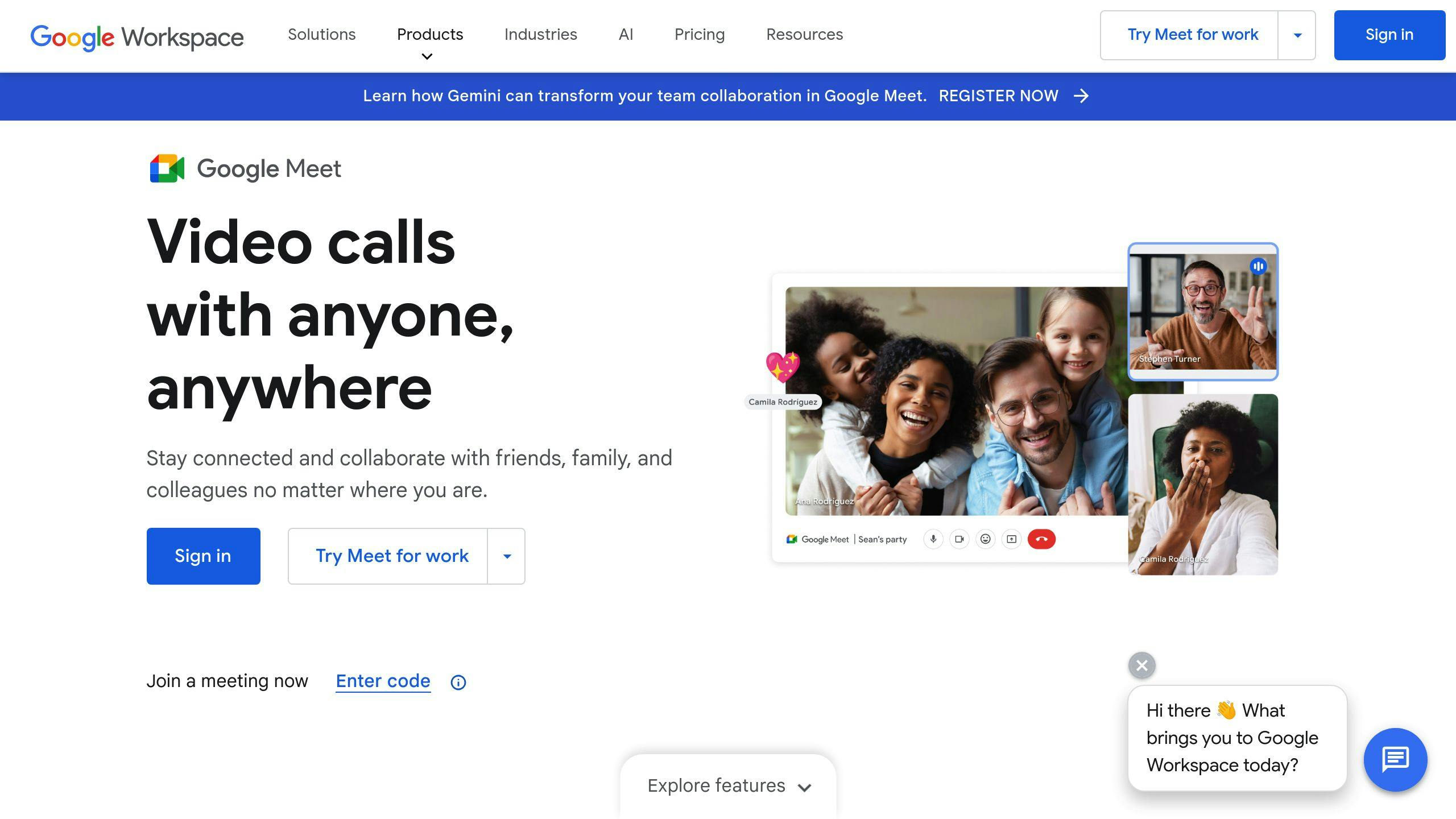
If you work with Google-based clients as a virtual assistant, Google Meet is your go-to video call solution. It fits right into the Google Workspace toolkit you’re probably already using.
What Makes Meet Stand Out?
Meet keeps things simple but packs a punch. You can host up to 500 people in a call – perfect for when your clients need big team meetings or presentations. Here’s something cool: you can stream your meetings straight to YouTube, which comes in handy for client webinars or training sessions.
Works Like a Charm with Other Google Tools
The best part? Meet plays perfectly with Gmail and Google Calendar. When you set up a meeting, Meet creates the video link automatically. Need to work on documents during calls? Just attach a Google Doc to the meeting invite, and it’s right there when you need it.
Keeps Your Client Conversations Safe
Your clients can rest easy – Meet comes with solid security features like encryption and two-step verification to keep private discussions private.
What You’ll Pay
The free version gives you:
- 60-minute calls
- Up to 100 participants
- Basic features
Want more? Paid plans start at $6 monthly and unlock longer meetings, bigger groups, and extra storage.
| What You Get | Free Plan | Business Starter |
|---|---|---|
| Call Length | 60 minutes | 24 hours |
| People Allowed | 100 max | 150 max |
| Storage Space | None | 30GB per user |
| Security Level | Basic | Advanced |
Quick Tip: Stick with the free plan for basic video calls. But if you’re spending hours in client meetings or need to save recordings, the Business Starter plan might be worth it.
Meet works best when your clients are in the Google ecosystem. For project management, many VAs pair it with Trello to keep tasks organized.
5. Trello for Task Management

As a VA juggling multiple client projects, you’ll love Trello’s Kanban-style boards for their simple, visual approach.
Think of each Trello board as a client or project hub. Lists like “To Do”, “In Progress”, and “Done” show you exactly where things stand. Just grab a task card and drop it into a new list – it’s that easy to update progress and keep clients in the loop.
Make Your Boards Work Smarter
Color-code your tasks with labels (red for urgent stuff, green for meetings, blue for content) to spot priorities at a glance. Add key details like client contacts or budgets right on the cards using custom fields.
Cool Features That Save Time
Here’s what makes Trello a VA favorite:
- Track time spent on tasks with Time in List
- See all your deadlines in Calendar view
- Let cards move themselves with automation rules
- Add extra info fields that match your projects
Pick Your Perfect Plan
Here’s what each Trello plan offers:
| Feature | Free Plan | Standard Plan | Premium Plan |
|---|---|---|---|
| Boards | Unlimited | Unlimited | Unlimited |
| Power-ups per board | 1 | 3 | Unlimited |
| File attachments | 10MB/file | 250MB/file | 250MB/file |
| Monthly price | $0 | $5/user | $10/user |
| Automation | Basic | Advanced | Custom |
Pro tip: Start with the free plan – most VAs find the $5 Standard plan hits the sweet spot when they’re ready to upgrade.
Trello shines when you’re showing clients their project status. Share your screen during Google Meet calls, and walk them through each task in real-time. It’s like giving them a guided tour of their project’s progress.
Next up: see how Google Workspace’s tools can boost your VA game even further.
6. Google Workspace for Productivity

Google Workspace turns your computer into a complete virtual office. It’s where your essential tools come together, making daily tasks flow smoothly.
Start with Gmail – it’s not just email, it’s your professional face with a custom address. Google Calendar keeps your schedule tight, helping you manage multiple clients without mix-ups. With the Business Standard plan, you get 2TB of Google Drive space – plenty of room for all those client files. Jump into Google Docs to work with others in real-time, chat while you edit, and track every change automatically. No more emailing files back and forth or wondering which version is current.
Here’s what you get with each plan:
| Feature | Business Starter | Business Standard | Business Plus |
|---|---|---|---|
| Storage | 30 GB | 2 TB | 5 TB |
| Video calls | 100 participants | 150 participants | 500 participants |
| Recording | No | Yes | Yes |
| Price/month | $6/user | $12/user | $18/user |
Pro tip: Want the best bang for your buck? Go for the Business Standard plan at $12/month. The extra storage and ability to record video calls make it worth the step up from Starter, especially if you work with several clients.
Keep Everything Safe
Your clients trust you with their data – and Google Workspace helps you protect it. Use two-factor authentication to lock down accounts, share files with encryption, and set different access levels for each client’s documents.
Here’s a neat trick: Drop any Google Doc or Sheet link into a Trello card, and you’ll see an instant preview. It’s just one way Google Workspace plays nice with other tools like Trello and Slack, helping you build a smooth, efficient workflow.
Feature and Pricing Comparison of Tools
Let’s break down what each tool offers and how much it’ll cost you.
| Tool | Starting Price | Key Features | Best For | Notable Integrations |
|---|---|---|---|---|
| Slack | $7.25/user/month | Message history, 2,200+ app integrations, channels | Team chat, file sharing | Google Drive, Asana |
| Zoom | $14.99/user/month | HD video, recording, breakout rooms | Client meetings, webinars | Calendar apps |
| Microsoft Teams | $5/user/month | Video calls, chat, file sharing | Microsoft 365 users | Office apps |
| Google Meet | $6/user/month | Video calls, screen sharing | Google Workspace users | Google Calendar |
| Trello | $5/user/month | Boards, lists, cards | Task tracking | Slack, Google Drive |
| Google Workspace | $6/user/month | Email, storage, Meet | All-in-one solution | Most business apps |
Yes, Slack costs more than other options at $7.25 per user monthly. But here’s the thing: those 2,200+ app integrations make it a powerhouse for handling complex work. If you’re juggling multiple client projects, Slack’s got you covered. Already using Microsoft 365? Then Microsoft Teams might be your best bet – it’s cheaper and works like a charm with your existing setup.
When it comes to video calls, Zoom is the heavy hitter. It’s pricey at $14.99 per user monthly, but it packs some serious features. Google Meet is the budget-friendly choice, especially if you’re already in the Google ecosystem. Both offer free plans with some limits on meeting length and participants – perfect if you’re just starting out.
Keep in mind that prices go up as your team grows and you need more features. Google Workspace starts at $6 per user monthly and throws in a whole bunch of productivity tools.
Pro tip: Want to start with zero cost? Mix Slack’s free plan for team chat with Google Meet’s free version for video calls. It’s a smart way to get started without spending a dime.
Final Thoughts on Choosing Communication Tools
Picking the right mix of communication tools can make all the difference in your success as a virtual assistant. Let’s cut through the noise and focus on what really matters.
Think of your communication tools as your virtual office – you need the right setup to get work done efficiently. For example, Slack works great for quick chats and organizing client conversations into separate channels, while Trello helps you track tasks visually. This combo gives you the best of both worlds: quick responses when needed and clear task tracking.
Here’s what to focus on when setting up your toolkit:
- Match tools to your daily workflow needs
- Pick options that fit your budget
- Make sure security measures are rock-solid, especially for client data
- Look for tools with end-to-end encryption when handling sensitive info
Pro tip: While basic tools might seem cheaper, investing in premium options like Zoom can actually save you time and hassle, especially if you do lots of client presentations.
“Effective communication tools are the backbone of successful virtual assistance. The key is not just having the tools, but using them strategically to create seamless workflows that enhance productivity and client relationships.”