Email overload is a major productivity drain, with professionals spending nearly a third of their workweek managing emails. Constant inbox checks lead to missed deadlines, stress, and wasted time. This article outlines 7 practical strategies to reduce email clutter, improve team collaboration, and reclaim valuable hours:
- Use the right tools for communication: Assign platforms like Slack for quick updates and Trello for project management. Reserve email for formal exchanges.
- Implement shared inboxes: Streamline email processing with clear roles and response guidelines.
- Schedule email checks: Set specific times to handle emails rather than reacting constantly.
- Reduce email volume: Write concise emails, limit CC/BCC use, and explore alternative tools.
- Set up filters and signatures: Automate email sorting and use standard signatures for clarity.
- Archive old emails: Regularly move completed threads to an organized archive system.
- Outsource email management: Delegate inbox tasks to professional services for efficiency.
These strategies help teams reduce stress, improve productivity, and focus on meaningful work.
These 4 Tips Saved Me From Email Overload
1. Assign Tools for Different Types of Communication
Reducing email overload starts with assigning the right tools for each type of communication. This approach keeps messages organized and ensures every conversation happens in the most suitable place.
Here’s how to organize your tools effectively:
- Quick updates: Use platforms like Slack or Teams for urgent questions or team chats.
- Project management: Rely on tools like Trello or Asana to track tasks and deadlines.
- External communication: Reserve email for clients and formal exchanges.
- Document collaboration: Use tools like Google Docs or SharePoint for real-time edits and sharing files.
The trick is to set clear rules for when to use each tool. For example, keep internal emails to a minimum by using chat platforms for quick questions, while reserving email for external communication and formal documentation. This keeps inboxes cleaner and ensures priority messages don’t get buried.
How to Implement This
- Define clear usage guidelines for each tool and create dedicated spaces for specific teams or departments.
- Configure project management tools to send notifications selectively, minimizing distractions while keeping everyone informed.
Also, set up systems for archiving and searching messages across platforms. This makes it easy to retrieve important information when needed. By assigning tools thoughtfully, teams can reduce email clutter and create a smoother workflow – making room for more collaborative methods like shared inboxes.
2. Use Shared Inboxes with Clear Guidelines
Shared inboxes can help streamline team communication and cut down on individual inbox overload. However, their success hinges on having clear rules in place.
Here’s how to make shared inboxes work effectively:
Define Access and Responsibilities
Set clear permissions and roles for managing the inbox. This avoids confusion and ensures accountability for handling messages.
Streamline Email Processing
Handle emails based on their priority:
- Urgent customer issues: Reply within 1 hour (Support Lead)
- General inquiries: Reply within 24 hours (Support Team)
- Internal updates: Reply within 48 hours (Team Manager)
- Newsletter/marketing: Review weekly (Marketing Team)
Assign Tasks Efficiently
Use shared inbox tools to delegate emails to the right team members. This prevents duplicate responses and ensures every message gets addressed.
Tips for Smooth Implementation:
- Set up notifications to alert team members when they’re assigned an email.
- Schedule weekly cleanup sessions to archive resolved emails and update tags.
Regular upkeep is crucial to keep things organized and ensure important emails don’t get buried.
To take it a step further, consider scheduling specific times for the team to check the inbox. It’s a simple way to stay on top of things without constant interruptions.
3. Schedule Times to Check Emails
Did you know professionals spend nearly a third of their workday – 28% – reading and replying to emails? On average, workers check their inbox about every 37 minutes, which adds up to 15 times a day.
Set Specific Time Blocks for Email
Instead of constantly reacting to emails as they come in, carve out specific times during the day to handle them. Here’s a simple plan:
- Morning (30 minutes): Focus on urgent messages and plan your day.
- Midday (20 minutes): Handle time-sensitive updates.
- End-of-Day (20 minutes): Wrap up final responses and clear your inbox.
Make Your Email Time More Efficient
To get the most out of these scheduled checks:
- Let your team and clients know your email schedule so they understand when to expect replies.
- Create a process for urgent issues, like marking emails with “URGENT” in the subject line or using a separate emergency communication channel.
For teams, coordinating email schedules can help workflows run more smoothly. For instance, a customer service team could stagger their email blocks to ensure someone is always available to respond.
Track Your Progress
Here are a few ways to measure how well this system works:
- Compare time spent on emails versus other core tasks.
- Monitor response times for high-priority messages.
- Assess changes in team productivity and stress levels.
4. Limit the Number of Emails Sent
Too many emails can overwhelm teams and reduce productivity. Cutting back on email volume frees up time for more important tasks by minimizing inbox management.
Keep Messages Short and Clear
Focus on writing brief emails with clear subject lines. Stick to one topic per email to prevent confusion and avoid long, tangled threads.
Be Thoughtful with CC and BCC
Use ‘To’ for the main recipients, ‘CC’ only when necessary for awareness, and avoid ‘BCC’ for routine team communications.
Explore Other Communication Tools
For quick updates, document sharing, or team discussions, consider using chat platforms or project management tools instead of email.
Practical Tips to Reduce Email Overload
- Build shared knowledge bases to address common questions.
- Use project management tools to share task-related updates.
- Set “email-free” periods for the team to encourage using other communication methods.
- Define clear rules for when to use email versus other tools.
Cutting down on emails not only reduces clutter but also helps teams streamline their inboxes further by using tools like filters and standardized email signatures.
5. Set Up Email Filters and Use Standard Signatures
Streamlining routine email tasks can help teams focus on more important work. By using email filters and standardized signatures, you can create a more organized and efficient communication system.
How to Use Email Filters Effectively
Email filters help sort messages automatically, keeping your inbox tidy. Here are some ideas:
- Route client emails to dedicated folders for easy access.
- Separate internal team messages from external communications.
- Highlight critical emails from key stakeholders by flagging them.
- Move newsletters and updates to specific folders to avoid distractions.
Filters work like an automated assistant, handling categorization without manual effort. To keep them running smoothly, review and adjust them regularly. Also, set clear team guidelines to ensure everyone uses filters in a consistent way.
Crafting Standard Email Signatures
A standard email signature provides essential details, reducing unnecessary follow-ups. Include the following:
- Your full name and job title.
- A direct phone number for easy contact.
- Your department or team.
- A link to your company’s website.
You can also add optional elements, like social media links, to offer alternative ways to connect.
Tips for Managing Filters and Signatures
To keep everything running smoothly, set up a regular schedule to review and update filters and signatures. Measure filter performance by checking how well emails are categorized and how quickly responses are sent.
6. Regularly Archive Old Emails
An overcrowded inbox can slow down your team by making important emails harder to find. Archiving helps keep inboxes focused on current priorities while still holding onto older messages for future reference.
Setting Up an Archive System
Design a system that automatically moves older emails, completed projects, and resolved issues into an archive. Use clear labels like ‘Project-2024-Q4’ to organize emails logically, and take advantage of your email platform’s built-in tools to automate the process.
Tips for Team Archiving
- Schedule Regular Cleanups
Dedicate 15 minutes each week – say, every Friday – to review and archive emails. Focus on wrapping up completed threads and clearing out outdated messages. - Keep Archives Accessible
Make sure archived emails are easy to find by setting clear rules for access. Ensure everyone who needs it has the right permissions, and use searchable labels for faster retrieval.
Tracking Archive Efficiency
Evaluate your archiving system by keeping an eye on these factors:
- How quickly team members can find archived emails
- The size of active inboxes
- Feedback from the team about email organization
- The ease of retrieving archived messages
Archiving is a great way to declutter inboxes, but pairing it with other email management strategies can make your team even more efficient.
7. Outsource Email Management to Services Like InboxDone.com
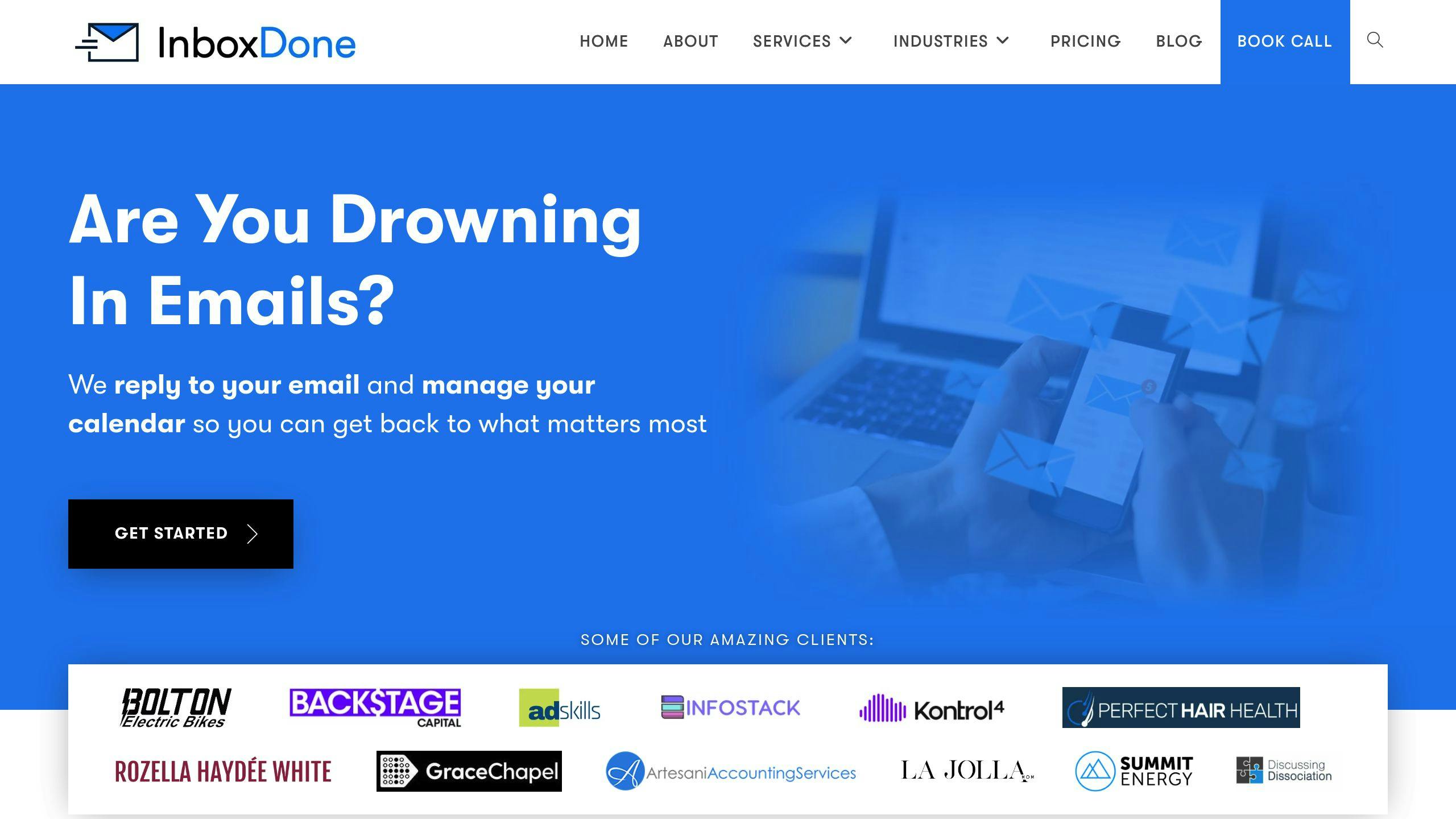
Using professional email management services can ease the burden of overflowing inboxes, freeing up your team to prioritize core business tasks while keeping communication smooth and reliable.
What Email Management Services Offer
These services assign skilled virtual assistants to handle tasks like managing emails, scheduling, customer support, and other administrative responsibilities. For instance, InboxDone.com pairs each client with two dedicated assistants, ensuring round-the-clock support and steady communication.
Why Consider It?
- Save time by delegating email tasks and focusing on higher-priority work
- Reliable communication through a dedicated team
- No gaps in coverage, even during off-hours
- Professional handling ensures emails meet quality standards
How to Get Started
First, identify repetitive tasks or specific email categories that can be handed off. Set clear guidelines for communication and regularly review performance to ensure everything runs smoothly.
Choosing the Right Service
Look for providers with strong security protocols and experienced assistants who can seamlessly integrate into your team’s workflow. The best services align with your communication style while maintaining security and consistency.
For teams drowning in emails, outsourcing can be a game-changer. It not only clears up time for more important work but also ensures that communication remains seamless and professional.
Conclusion
Managing email effectively is crucial for teams aiming to improve workflow and boost productivity. The strategies discussed here offer practical ways to take back control of overloaded inboxes.
Using structured communication tools and setting clear shared inbox rules can help cut down on email chaos. The focus should be on building systems that fit your team’s needs while keeping communication smooth and organized.
Automation tools and smart filtering can make email management less of a chore. Adding scheduled email checks to your routine can also help teams stay focused and get more done during the day.
If managing large volumes of email becomes overwhelming, professional services like InboxDone.com can step in. These services provide virtual assistants who handle communication tasks, freeing up your team to focus on what matters most.
Consistency and regular reviews are key to keeping email systems effective. By applying these strategies, teams can create a well-organized communication process that supports better collaboration and higher productivity.
FAQs
How do executives manage their emails?
Many executives rely on a three-folder system to stay on top of their inbox: Action (for emails requiring immediate attention or replies), Read (for informational messages), and Waiting (for emails awaiting responses).
To stay efficient, they often:
- Set up email rules to automatically sort messages into the right folders.
- Use clear labels to prioritize tasks and monitor progress.
- Schedule specific blocks of time for focused inbox reviews.
This organized approach not only saves time but also sets a strong example for the team, promoting better email habits across the board. For teams overwhelmed by email volume, virtual executive assistants can step in to manage inboxes while maintaining the executive’s communication style and ensuring no message is overlooked.
Regular maintenance and consistency are key to keeping this system running smoothly. By leading with these practices, executives encourage their teams to adopt similar strategies for handling email overload.