Managing emails can be overwhelming. With professionals handling 121 emails daily on average, staying organized is crucial to avoid missed deadlines and reduced productivity. Here are five email folder systems to help you stay on top of your inbox:
- Four Folders System: Simple structure with Inbox, Follow-ups, Actions, and File folders for easy prioritization.
- Gmail Labels: Flexible tagging system with color-coded labels and sub-labels for multi-category organization.
- OnMail‘s Split Inboxes: Separate inboxes for different email types, offering visual clarity and spam control.
- Automated Categorization: AI-powered sorting to save time and manage large email volumes efficiently.
- Custom Folder Structures: Personalized folders and subfolders tailored to specific workflows.
BEST Way to Organize Gmail Inbox
Quick Comparison
| System | Strengths | Weaknesses | Best For |
|---|---|---|---|
| Four Folders System | Easy to use; clear priorities | Limited flexibility | Beginners or moderate email users |
| Gmail Labels | Multi-labeling; great search tools | Can feel cluttered | Project-based or multi-category tasks |
| OnMail’s Split Inboxes | Clear organization; spam filtering | Limited platform compatibility | Handling varied email types |
| Automated Categorization | Time-saving; handles large volumes | Occasional misclassification | Heavy email users |
| Custom Folder Structures | Tailored organization; scalable | Time-consuming to set up | Specific workflows |
Choose a system based on your email volume, workflow needs, and preference for automation or manual sorting. Start simple and refine over time to maintain control of your inbox.
What Are Email Folder Systems?
Email folder systems are tools designed to organize your inbox, making it easier to handle and locate messages. By grouping emails based on their purpose, urgency, or category, these systems bring structure to what can often feel like chaos.
Here’s how they can help:
- Save Time: Quickly find the emails you need without endless scrolling.
- Set Priorities: Separate urgent tasks from less critical ones.
- Stay Organized: Categorize emails into folders so important information is easy to access, even months later.
A good folder system should be straightforward, easy to use, and adaptable to your workflow.
Now, let’s dive into five specific folder systems to see which one might suit you best.
1. The Four Folders System
Description
The Four Folders System is a straightforward way to organize your emails by dividing them into four main categories:
- Inbox: The central spot for all incoming emails.
- Follow-ups: Keeps track of emails you’re waiting to hear back on.
- Actions: Acts as your to-do list for emails requiring attention.
- File: A place to store emails you might need later.
Pros and Cons
Pros:
- Easy to understand and implement.
- Helps prioritize and track emails effectively.
- Works across different email platforms.
Cons:
- Sorting emails manually can be time-consuming.
- May not meet the needs of those with highly complex workflows.
- Setting it up initially requires some effort.
Tips for Getting Started
Start by manually sorting your emails into the four folders based on urgency and what action is needed. Use your email client’s automation tools, like filters or rules, to speed up the process. Regularly review and maintain your folders to keep everything running smoothly and your inbox under control.
Best For
This system works well for professionals with a moderate email load, project managers juggling tasks, and teams needing a clear structure. It simplifies email management and can make achieving Inbox Zero more realistic.
If you’re looking for more customization, consider alternatives like Gmail Labels, which offer additional flexibility.
2. Gmail Labels

Description
Gmail Labels work like digital tags, allowing you to organize emails without removing them from your inbox. Unlike traditional folders, which restrict an email to one location, Labels let you assign multiple tags to a single message, keeping it accessible in multiple contexts.
Benefits
Gmail’s labeling system provides several useful features for managing your inbox:
- Tagging Flexibility: Assign multiple labels to a single email, making it easy to organize messages that span various projects or topics.
- Color-Coded Organization: Add colors to labels for quick identification and easier inbox navigation.
- Sub-Labels for Structure: Create a hierarchy of labels (e.g., “Clients/Active” and “Clients/Past”) for a more organized system.
- Search-Friendly: Combine labels with Gmail’s robust search tools to quickly filter and locate specific emails.
Drawbacks
Despite its versatility, Gmail Labels have a few challenges:
- Adjustment Period: Users accustomed to folder-based systems might need time to get used to the labeling approach.
- Over-Organization Risk: Too many labels can clutter your sidebar, requiring regular maintenance to stay tidy.
Best Use Cases
Gmail Labels shine in certain scenarios:
| Use Case | Example Implementation |
|---|---|
| Project Management | Use main labels for projects and sub-labels for phases. |
| Client Communication | Assign client-specific, color-coded labels for better prioritization. |
| Team Collaboration | Share labels within a team to maintain consistent email organization. |
| Task Tracking | Label emails as “Follow-up”, “Urgent”, or “Waiting Response” to manage tasks efficiently. |
“Labels categorize messages, making them easier to find later.” – Google Support, Gmail Help
To maximize their potential, pair Gmail Labels with automated filters. Filters can sort incoming emails by sender, subject, or keywords, saving you time and effort.
Although Gmail Labels offer a flexible way to organize emails, some users might prefer an inbox system that automatically categorizes messages, like OnMail’s Split Inboxes.
3. OnMail‘s Split Inboxes
Description
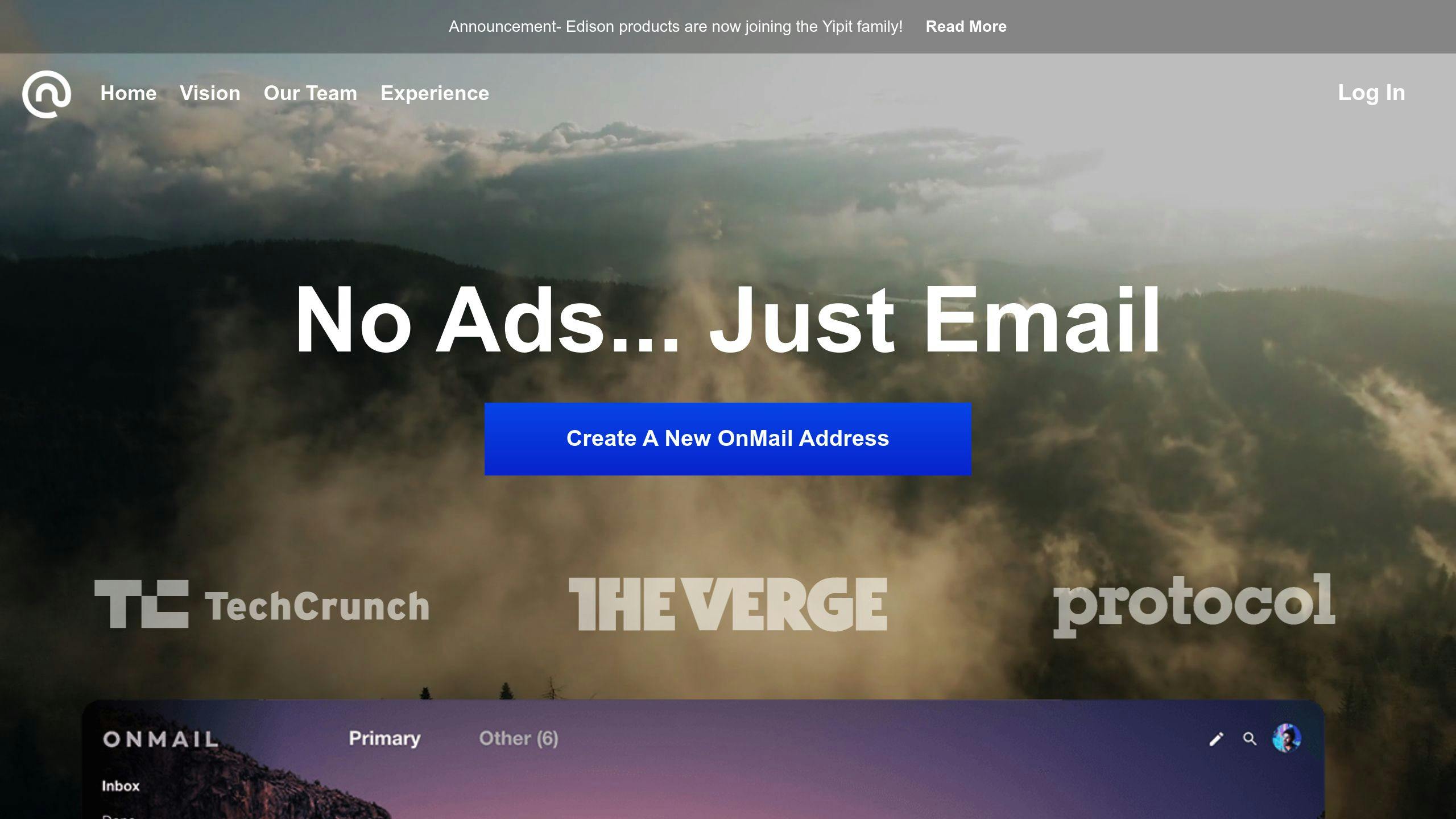
OnMail’s Split Inboxes offers a fresh way to organize your email, making it easier to manage messages visually. Instead of relying on traditional folders or Gmail’s Labels, this feature creates separate spaces for different email categories. This means you can have multiple inboxes, each focused on a specific type of email, all at the same time.
Advantages
Here’s what makes Split Inboxes stand out:
| Advantage | Description |
|---|---|
| Visual Organization & Navigation | Clearly defined categories with simple, one-tap navigation between inboxes |
| Inbox Protection | Gives you control over who can email you, helping keep unwanted clutter out |
| Focused Workflow | Keeps different email types in separate spaces, making it easier to concentrate and stay organized |
Unlike Gmail Labels, which work by tagging messages, Split Inboxes creates completely separate areas for emails, helping you avoid a cluttered inbox.
Disadvantages
Though Split Inboxes introduces a new way to manage emails, it does have a few downsides:
- Learning Curve: Users familiar with traditional folder systems might find it challenging to adjust to this new setup.
- Limited Integration: As a standalone service, it may not work seamlessly with other email tools.
- Simplistic Categorization: It might not suit users who need more advanced or detailed email organization systems.
Ideal Use Cases
Split Inboxes is especially useful for:
| User Profile | How to Use It |
|---|---|
| Professionals Handling Multiple Projects | Create inboxes for specific clients, teams, or project stages. |
| Customer Support Teams | Organize emails by support topics or issue types. |
| Content Creators | Separate communications for different platforms, audiences, or collaborators. |
For best results, regularly review and update your inbox categories to match changing projects or priorities. While this system is great for hands-on organization, some users might prefer automated tools to handle categorization for them.
4. Automated Email Categorization
Description
Automated email categorization uses AI to organize emails by analyzing their content, sender information, and metadata. This streamlines routine tasks, allowing professionals to concentrate on high-priority work and reach Inbox Zero more efficiently.
Benefits
| Benefit | Description |
|---|---|
| Time-Saving | Automatically keeps emails organized, reducing the need for manual sorting |
| Improved Security | Identifies and filters out spam and phishing emails |
| Learning Capability | Adapts based on user actions to refine categorization over time |
Drawbacks
| Limitation | Impact |
|---|---|
| Classification Errors | AI may occasionally mislabel emails, leading to misplaced messages |
| Initial Setup | Requires configuration and periodic adjustments for optimal performance |
| Reliance on Technology | Needs a stable internet connection and consistent updates to function effectively |
Best Use Cases
This type of automation works best for managing large volumes of emails, handling multiple accounts, or supporting customer service teams. Tools like Hiver, Sanebox, and Mail Manager simplify sorting and improve productivity.
To make the most of automated categorization, choose tools that seamlessly integrate with your email platform and offer customization options to fit your workflow. Regularly reviewing and updating automation rules ensures the system stays effective as your email habits change.
For those who prefer a more tailored approach, manual or semi-automated systems might be a better fit for unique workflows.
5. Custom Folder Structures
Description
Custom folder structures allow users to organize emails in a way that fits their specific workflows. These folders and subfolders can be arranged to align with business processes or personal preferences.
Benefits
| Benefit | Description |
|---|---|
| Personalized Organization | Design folders to match your workflow |
| Flexible Hierarchy | Use main folders and subfolders for detailed organization |
| Room to Grow | Adjust and expand as your needs evolve |
| Workflow Compatibility | Align with existing processes seamlessly |
Drawbacks
- Setting up and maintaining the structure can be time-consuming.
- Without careful planning, the system can become overly complicated.
- Team members may need training to use the structure effectively.
Best Use Cases
Custom folder structures are especially useful in industries like marketing or project management, where detailed categorization is essential. They’re a great solution when standard organization methods fall short of specific business requirements.
Tips for Success
- Use clear and intuitive folder names.
- Limit folder depth to three levels to avoid complexity.
- Automate sorting rules to keep things organized.
- Regularly review and archive outdated folders.
- Document the structure for team members to reference.
To make the most of custom folder structures, start with broad categories, use straightforward naming, and rely on automation tools. Regular reviews will help keep the system efficient and relevant to your needs. While these structures offer great flexibility, it’s important to weigh their complexity against your workflow requirements.
Strengths and Weaknesses of Each System
Let’s break down the pros and cons of the five email folder systems to help you decide which one aligns best with your workflow.
| System | Strengths | Weaknesses | Ideal For |
|---|---|---|---|
| Four Folders System | Easy to use; helps prioritize quickly | Limited flexibility; not ideal for complex needs | Professionals who prefer simplicity |
| Gmail Labels | Offers multi-labeling; excellent search tools | Can feel cluttered with too many tags | Organizing emails across multiple categories |
| OnMail’s Split Inboxes | Clear visual sorting; strong spam filtering | Works on limited platforms | Handling varied email types |
| Automated Categorization | Saves time; manages large volumes | Requires setup; occasional misclassification | Users with heavy email traffic |
| Custom Folder Structures | Tailored to your needs; grows with you | Time-consuming to set up and maintain | Workflows needing specific organization |
For heavy email users, combining Gmail Labels with automation and a basic folder system can strike a balance between flexibility and ease of use.
“The Four Folders System and Gmail Labels are relatively straightforward and easy to implement, while OnMail’s Split Inboxes and Automated Email Categorization may require more setup and adjustment”.
Your choice should depend on factors like email volume, how complicated your workflow is, and how much time you can dedicate to maintenance. Services like InboxDone can simplify the process by handling setup and ongoing management for you.
Final Thoughts
Picking the right email folder system can make a big difference in how you manage your inbox and reduce stress. Each system works best for different work habits and organizational goals.
Automated Email Categorization uses AI to handle large volumes of emails efficiently, though it does require some initial setup. Gmail Labels are great for organizing emails into multiple categories, making them ideal for project-based tasks. The Four Folders System is a straightforward choice for beginners, while OnMail’s Split Inboxes offer a visually clear way to manage messages.
“The ease of use and learning curve vary among the systems, with some requiring more setup and adjustment than others. Success often comes from starting with a simple structure and gradually refining it based on your workflow patterns”.
Here’s how to get started:
- Start simple with something like the Four Folders approach.
- Gradually add automation tools as your needs grow.
- Revisit and tweak your system every few months to keep it effective.
If you prefer something more personalized, creating custom folder structures might be the way to go. Just keep in mind that these systems often need more upkeep. A hybrid approach can also work well – for example, combining Gmail Labels with automated filters can give you both flexibility and efficiency.
Now’s the time to decide which system fits your workflow best. Whether you’re managing client emails, team updates, or project communications, organizing your inbox can boost productivity and help you stay on top of things.
If you’re short on time, professional email management services can take care of setup and upkeep for you, so you can focus on what matters most.